

When you move to the last portion of the budget window, you’ll see the account number of your Page, and a link to “Change”
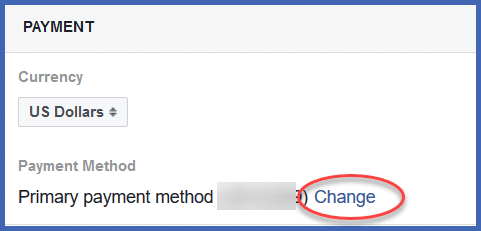
Clicking “Change” opens the Payment Settings on your Ads Manager Page, and shows you a summary of your bill and your payment options.
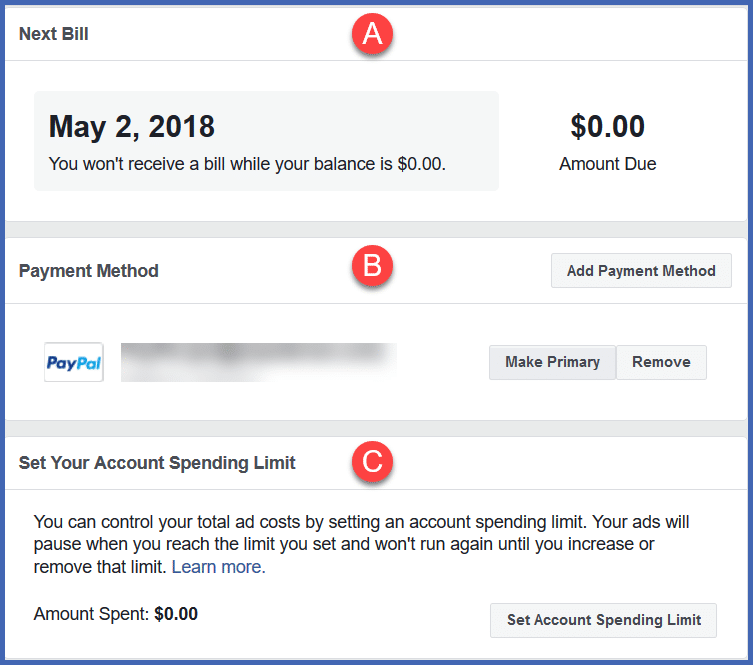
- BILL SUMMARY
This shows the amount you’ll pay.
- PAYMENT METHOD
You can set your payment method here, by using PayPal or entering a credit card. You can choose which method will be your primary method of payment, and change it at any time.
- ACCOUNT SPENDING LIMIT
Setting a spending limit will help you control the costs of your campaign. Once you reach that limit, your ad won’t run any more until you either raise the limit or remove it.
Once you’ve finished customizing your ad, selecting your target audience, defining your budget, and confirming your payment, you’re all set.
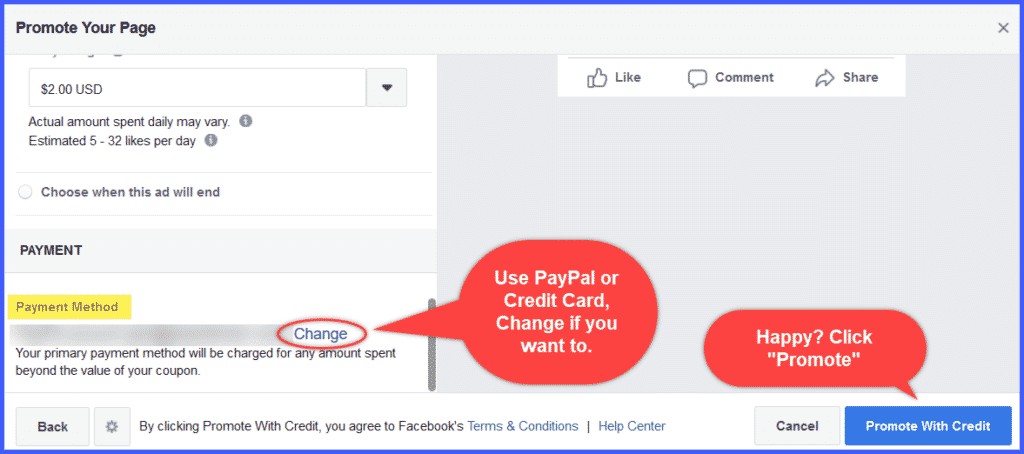
Give everything one last look, and when you’re ready, review the Terms and Conditions, then click “Promote.”
You’re all set!