

On your Facebook Page, on the right sidebar under your image, you’ll find a button that says “Promote.”
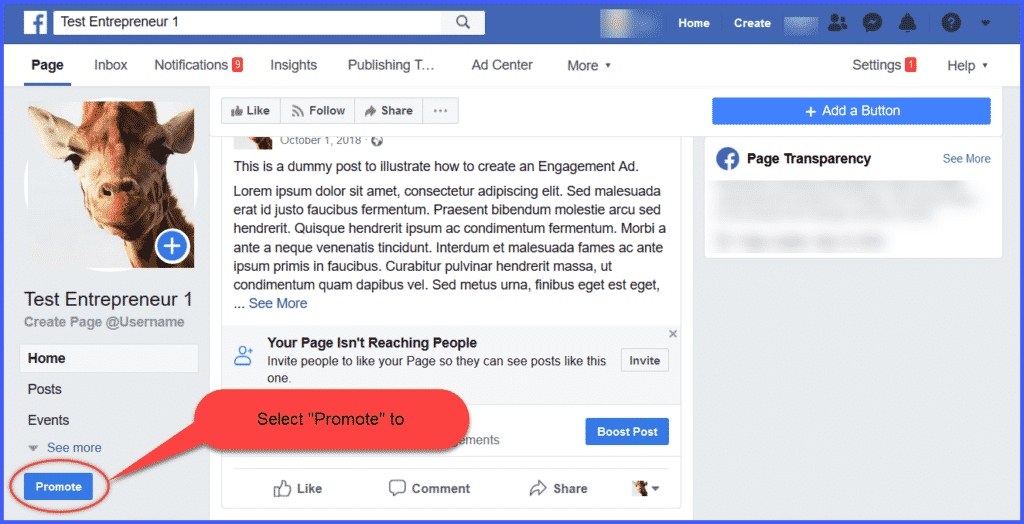
Clicking on “Promote” will open a dropdown menu like this:
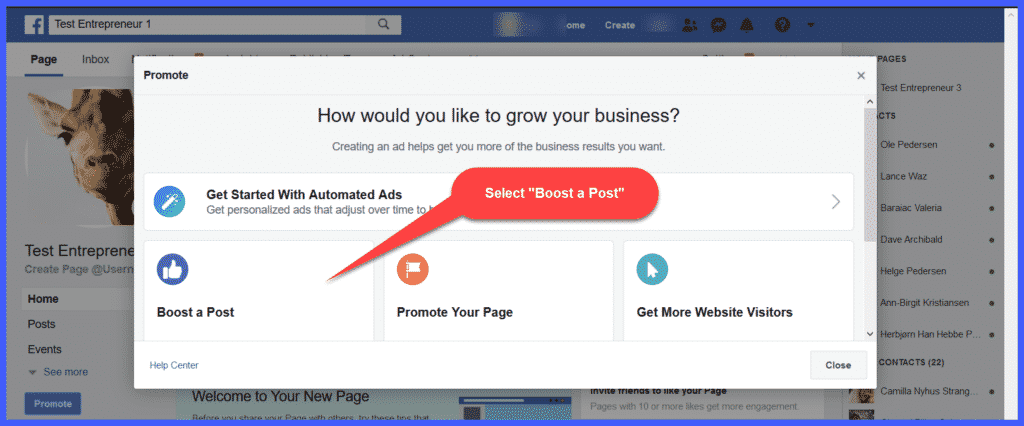
We’re going to create engagement by boosting a post.
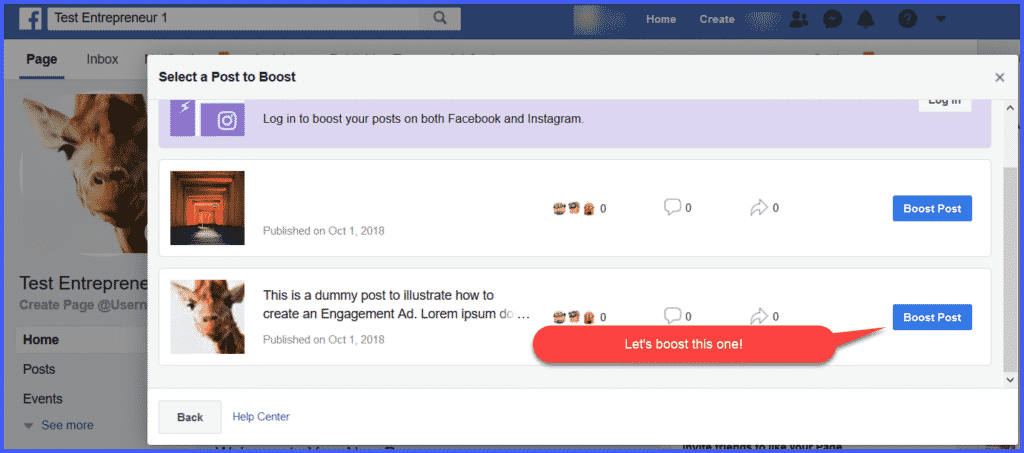
When you click “Boost a Post,” a dropdown menu will ask you to select a particular post to promote.
We’ve already created a test post for purposes of this course, so it displays on the dropdown.
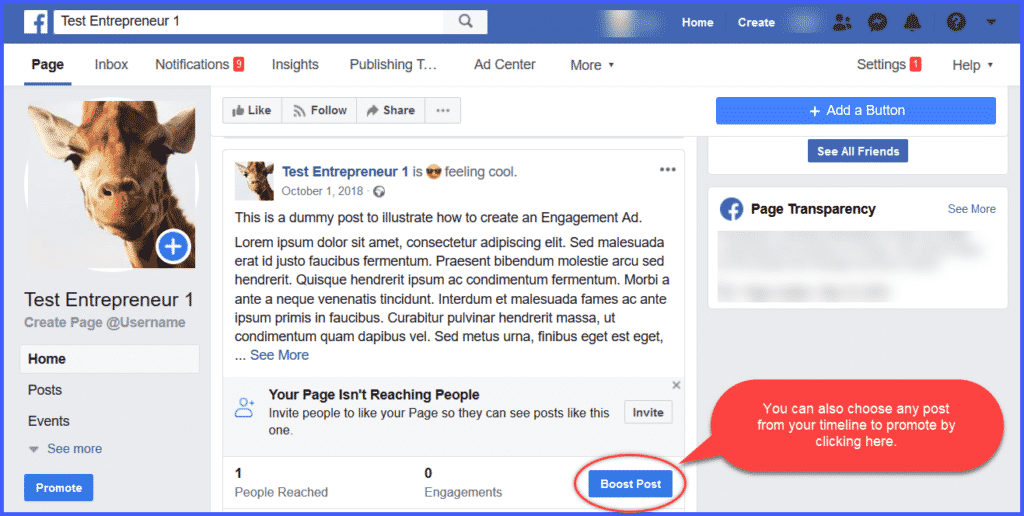
A faster way to select a post to promote is to just scroll through your timeline to the post you want to promote, and click “Boost Post” at the bottom, like this:
Whichever way you choose “Boost Post,” a new dropdown appears:
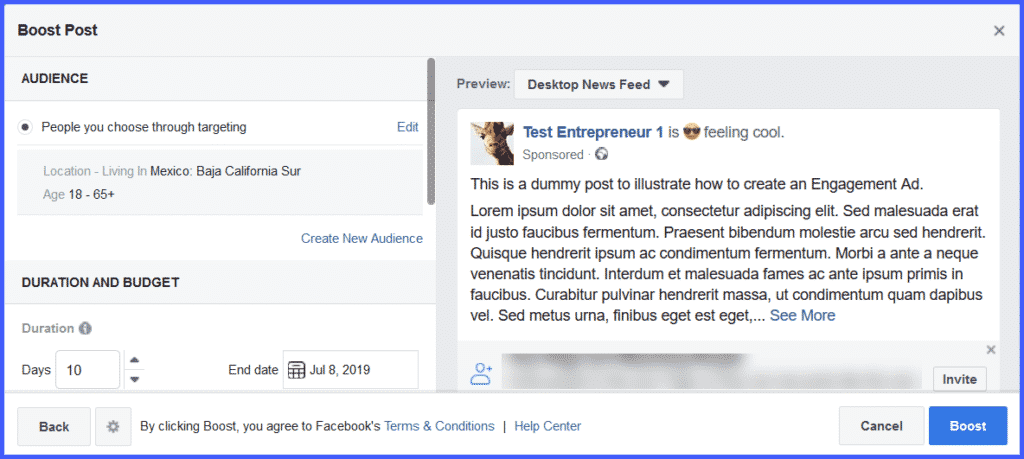
You’ll see the post you want to promote over on the right, and a scrolling menu on the left.
Here’s where it gets fun – you get to create your own custom audience to engage with your post.