

The big day is here! As they say in show biz, “Break a Leg!” A few minutes before your scheduled start time, get yourself set up.
Now the fun begins.
From your Facebook Page, at the top of your News Feed where it says “Create,” Click “Live.”
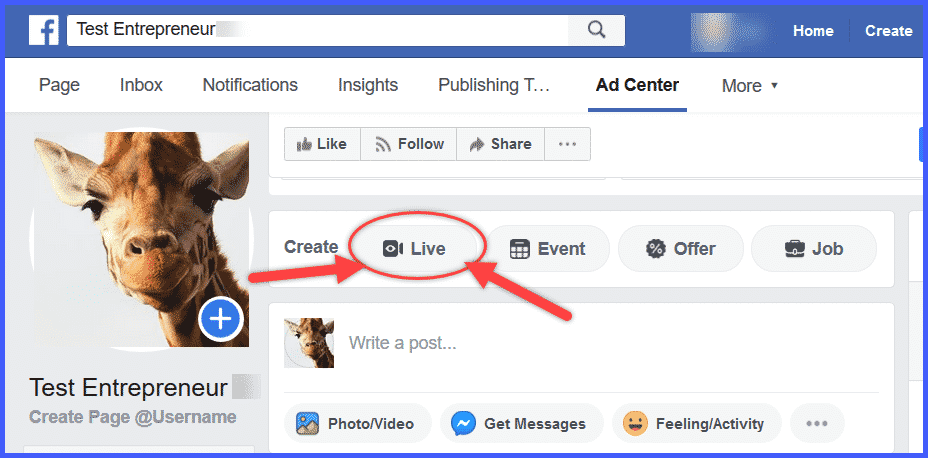
Alternatively, you can go to: https://www.facebook.com/live/create to set up your Facebook Live.
When this window pops up, click “Allow” to give Facebook permission to use your camera.
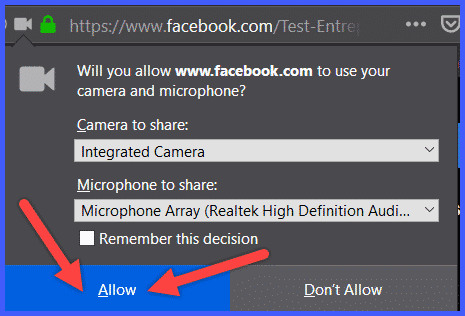
Once you click “Allow,” an information page will pop up, offering you a choice:
You can use the Google Chrome browser to go live from your computer.

For your first Facebook Live, using Google Chrome to broadcast from your computer might be the easier way to start.
OR
You can download streaming software so you can show your computer screen and use broadcasting equipment to livestream to Facebook.
Facebook currently recommends one of these three services, depending on the kind of content you’ll be streaming.
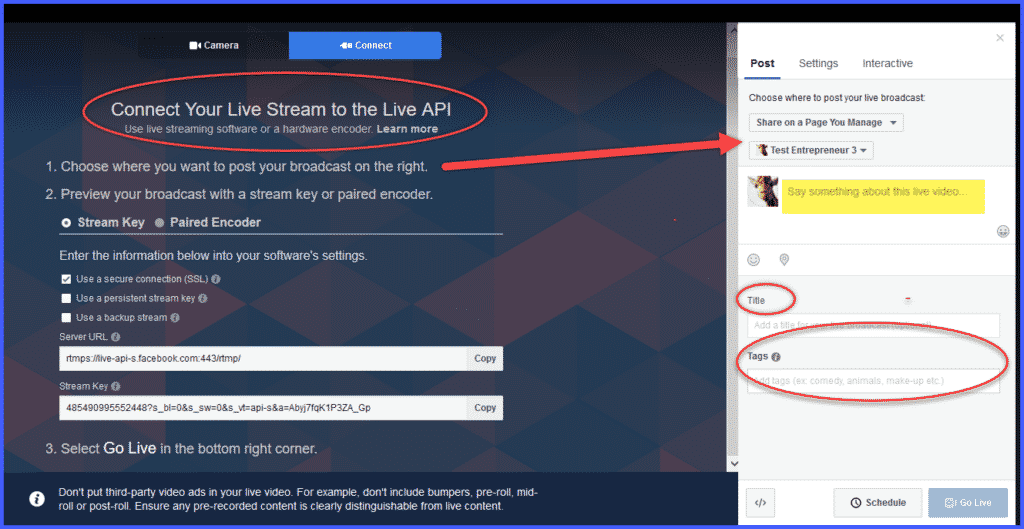
The process to set up your streaming software depends on the software you're using. Copy and paste the Server URL and stream key to your encoding software.
When you’re using streaming software, you can choose to create a persistent stream key that you can use to promote your recorded video later on other sites.
Copy and paste the server URL and stream key into the settings of your streaming software and start the video stream from your encoder. A preview screen will appear.
Over on the right, you’ll see a place to enter a title and description for your Live event. Write a few words about your live video in the space indicated. Use the same compelling headline you created for your promotion, so people have a reason to join and stay with you.
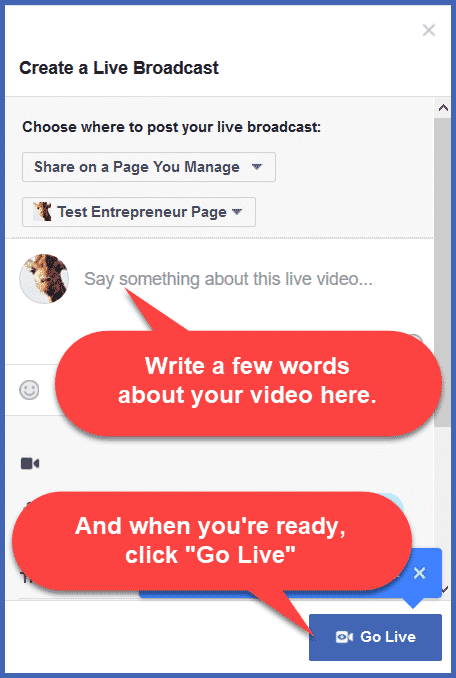
After you’ve written your description, and when you’re ready, click “Go Live.”
You’ll see a countdown on the screen…3…2…1.
You’re now live!
Talk until you’re finished. Then click “End Live Video.”
After just a few seconds, your camera will activate and you’ll see a preview of what the camera sees. Over on the right side of the screen, you’ll see a new window.
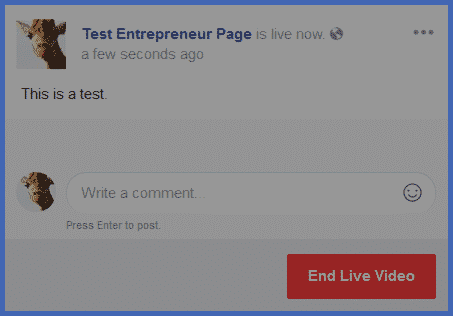
A confirmation screen will appear:
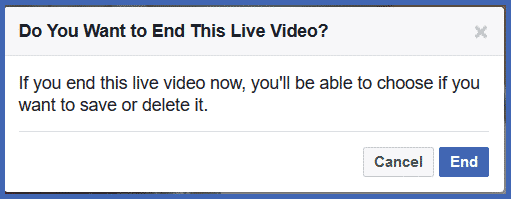
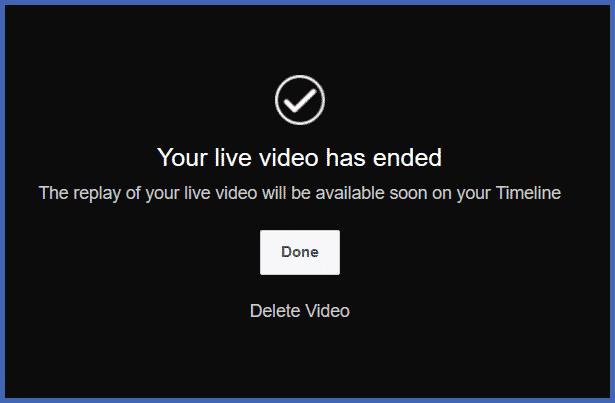
When you click “End,” you’ll get the chance to save your video and post it to your timeline, or delete it altogether:
Remember – as long as you’re talking, you’re broadcasting LIVE to your visitors. Facebook generously gives you up to 4 hours!
The broadcast won’t end until you click “Done.”
Depending on the length of your video, it should only take a few minutes to show up on your News Feed, where it will live forever, until you delete it.