When you’ve clicked “Continue,” this box appears:
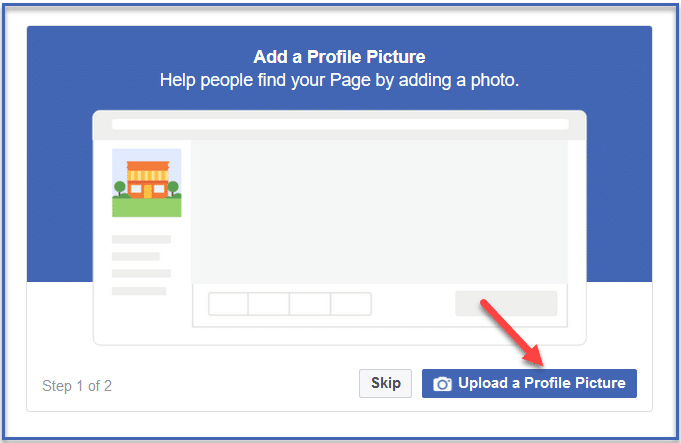
It will lead you through a simple, two-step process of uploading a Profile Picture and Cover Photo.
Your Profile Picture will represent you, as your icon, whenever you post a comment or publish posts to your news feed. It will show up on everyone else’s timeline, so you’ll want to put your best face forward!
Facebook will force a rectangular photo into a square, so you’ll want to make sure your image is cropped just the way you like it before you upload it.
The best image size is a minimum of 180 x 180 pixels, so it will show up the right way all over the platform.
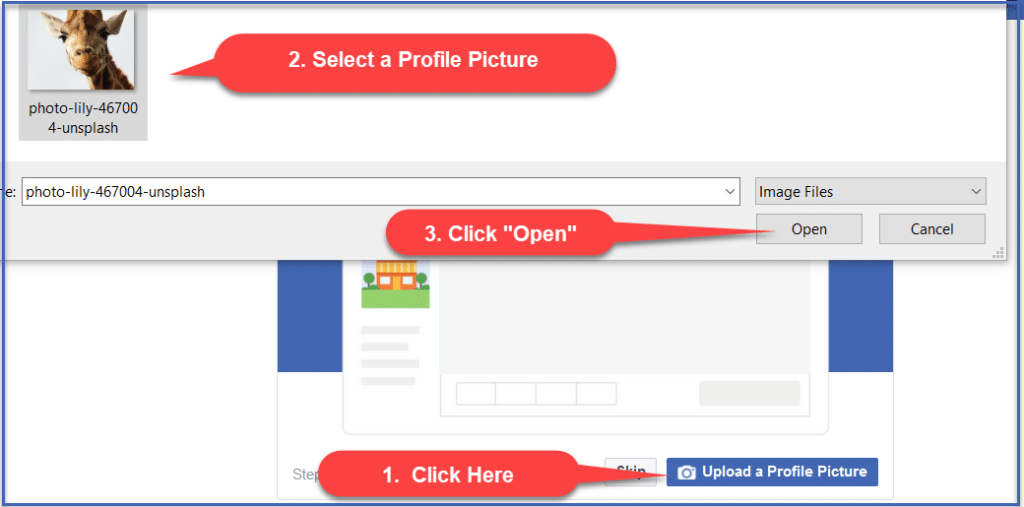
Once you’ve found the image you think represents you best, it’s a simple 1-2-3 to upload it:
- Click “Upload a Profile Picture”
- Select the photo you’d like to use.
- Click “Open.”
Your profile picture will automatically upload as soon as you click “Open.”
(Note: Our test entrepreneur is a giraffe. You’ll want to use your own, real face.)
Next, you’ll be asked to choose a Cover Photo.
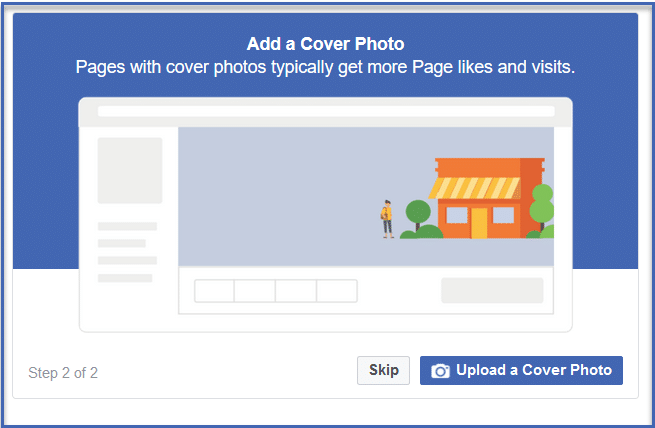
The cover photo is the large image that shows up across the top of your page. It communicates and supports your brand, draws attention, and will create an emotional response from your visitors.
Your cover photo will show up on a desktop or laptop as 851 pixels wide by 315 pixels high. But mobile devices will crop the image – shaving off at least 144 pixels from each side.
That means that even though the ideal image size is 851 x 315 pixels, what will appear on mobile devices is only the center 563 x 315 pixels.
If you’re just starting out with your first Facebook Page, there’s no need to hire a designer. You can edit your own picture, using whatever image editing software you have on hand. You could also use templates you can find online, or apps like Canva, BeFunky, or Pic Monkey to design just the right photo for your cover image.
For now, let’s just use a photo we like.
Follow the same three simple steps.
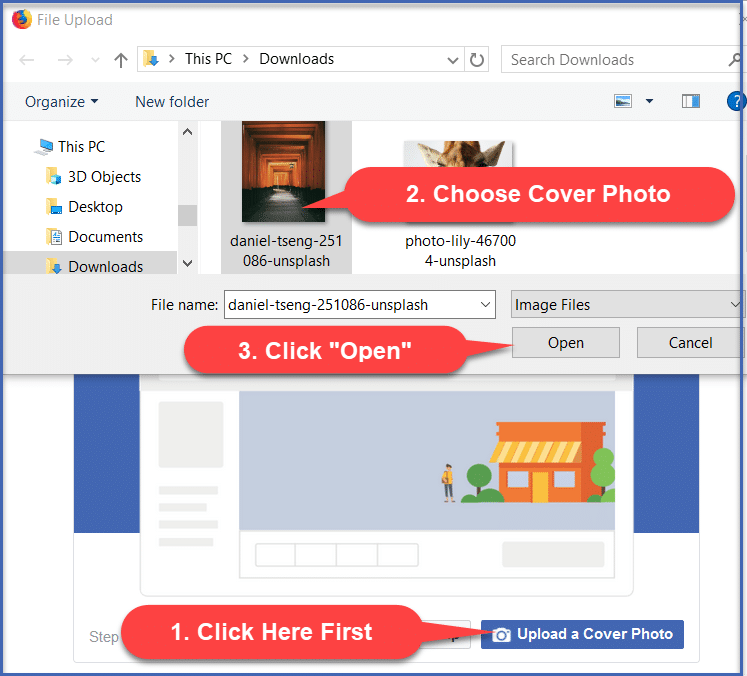
- Click “Upload a Cover Photo.”
- Choose your photo.
- Click “Open.”
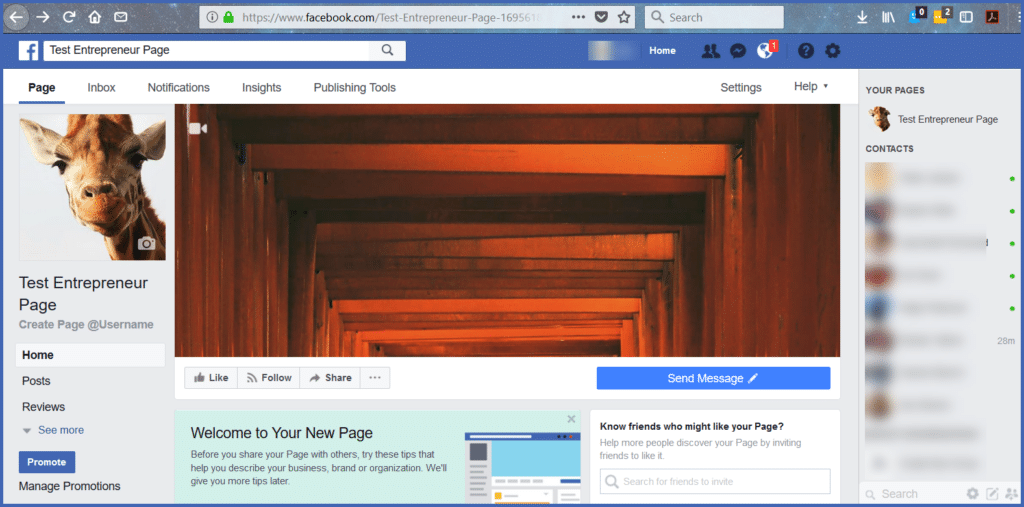
Your newly designed page will load.
Our Test Entrepreneur 1 Page looks just like this: